
share IBM WebSphere Tech
Monday, October 7, 2013
I will be back
I joined IBM China Global Delivery Center for more than one year since 2012, I will be back and continue to work on my blog
Saturday, February 25, 2012
Start/stop Weblogic without entering username and password
Recently I am working on installing Oralce Fusion middleware products which require WebLogic Application Server.
During start/stop Weblogic Application Server, we have to manually entering the username and password.To try to avoid doing this, we can add boot.properties file in security directory
1) go to server instance security directory, for example, ${Weblogic_Home}/user_projects/domains/testdomain/servers/AdminServer/security.
Note: must be server instance directory, if the boot.properties created at other directory, it will not work.
2) create a file named boot.properties as following:
username=weblogic
password=123456789
Note: no single or double quote for the values, or it will not work
During start/stop Weblogic Application Server, we have to manually entering the username and password.To try to avoid doing this, we can add boot.properties file in security directory
1) go to server instance security directory, for example, ${Weblogic_Home}/user_projects/domains/testdomain/servers/AdminServer/security.
Note: must be server instance directory, if the boot.properties created at other directory, it will not work.
2) create a file named boot.properties as following:
username=weblogic
password=123456789
Note: no single or double quote for the values, or it will not work
WebSphere launchClient.sh shows Out Of Memory Error.
One of my applications is using WebSphere Application Server launchClient script to run some functions.However, launchClient script can not be run properly because of the Out of memory issue(PermGen Space).
Checking WAS instance SystemOut.log and verbose gc logs,and no any errors in the log files, which shows launchClient script did not interact with the WAS instance yet.
solution:
add the options "-JVMOptions" to specify the perm size value
launchClient.sh -profileName AppSrv01 -JVMOptions "-XX:MaxPermSize=256M"
then the issue was solved.
Checking WAS instance SystemOut.log and verbose gc logs,and no any errors in the log files, which shows launchClient script did not interact with the WAS instance yet.
solution:
add the options "-JVMOptions" to specify the perm size value
launchClient.sh -profileName AppSrv01 -JVMOptions "-XX:MaxPermSize=256M"
then the issue was solved.
Thursday, January 19, 2012
WebSphere Application Server -- ORA-03120 error solution
WAS server 6.1.0.27 running on Solaris
Back-end Database: Oracle 9i -9.2.0.4.0
Application running on WAS is writing the XML response to table CLOB field but the following error shows in the SystemOut.log:
writeClob failed on com.xxxx.xxx.
Checked the application log and found ORA-03120 error (Integer Overflow):
Queried Oracle DBA and DBA did not notice any error on Database side. The application running on Production environment has no this kind of error.
Back-end Database: Oracle 9i -9.2.0.4.0
Application running on WAS is writing the XML response to table CLOB field but the following error shows in the SystemOut.log:
writeClob failed on com.xxxx.xxx.
Checked the application log and found ORA-03120 error (Integer Overflow):
Queried Oracle DBA and DBA did not notice any error on Database side. The application running on Production environment has no this kind of error.
Sunday, January 15, 2012
WebSphere Business Monitor 7 - Archive Monitor Module Instance Data
After a long time running, the instance data in a monitor module may reach thousands of records. It will take a lot of Database server disk space and will also downgrade the query performance. The following UNIX shell script shows how to archive the instance data with retention period of 3 month:
IBM provide a jython script in the directory /IBM/WebSphere/MonServer/scripts.wbm/instances to use for archive the data, refering to the following URL for the script usage:
http://publib.boulder.ibm.com/infocenter/dmndhelp/v7r0mx/topic/com.ibm.btools.help.monitor.ref.doc/ref/instdata_archive_script.html
IBM provide a jython script in the directory /IBM/WebSphere/MonServer/scripts.wbm/instances to use for archive the data, refering to the following URL for the script usage:
http://publib.boulder.ibm.com/infocenter/dmndhelp/v7r0mx/topic/com.ibm.btools.help.monitor.ref.doc/ref/instdata_archive_script.html
Friday, January 13, 2012
WebSphere Partner Gateway - Resend a file using script
This post will show how to resend a file using jacl script in IBM WebSphere Partner Gateway (WPG), WPG is an AS2 file exchange software developed by IBM. Some times we have to resend a failed file to AS2 partners. This action can be down from hubadmin console but if we know how to resend a file using jacl script, we can schedule the task. the following scripts are working with WPG6.0, not test on other WPG version.
Thursday, January 12, 2012
IBM BPM7.5 Advanced Architecture
The following architecture diagram shown here provides a good introduction to the makeup of BPM Advanced. It highlights the tools and capabilities that originate from earlier version of WebSphere Lombardi Edition and WebSphere Process Server.


Wednesday, January 4, 2012
IBM BPM7.5.1 database compare with WPS7
The following Database need to be created for IBM BPM7.5.1
1) BPMDB (Process Server DB)
2) CMNDB (Common DB)
3) BPCDB (Business Process Choreographer DB)
4) BSPACEDB (Business Space DB)
5) OBSRVDB (Business Process Observing Reporting DB)
6) PDWDB (Performance Datawarehouse DB)
7) MEDB (Messaging Engine database)
8) CEIDB (Common Event Service DB)
1) BPMDB (Process Server DB)
2) CMNDB (Common DB)
3) BPCDB (Business Process Choreographer DB)
4) BSPACEDB (Business Space DB)
5) OBSRVDB (Business Process Observing Reporting DB)
6) PDWDB (Performance Datawarehouse DB)
7) MEDB (Messaging Engine database)
8) CEIDB (Common Event Service DB)
Tuesday, January 3, 2012
Install IBM BPM Advanced Process Server 7.5.1 on AIX 7 silently
BPM, Business Process Management, is a product released by IBM to replace WebSphere Process Server after IBM purchased the company Lombardi and integrated its distinguished business process solution. In this post, I will show how to install BPM Advanced Server 7.5.1 on AIX7; however, this process does not include install Lombardi business process center.
The steps show how to install IBM BPM 7.5.1 silently with non-root user, for example, wpsuser.
1. PRELIMINARY WORK
1) Create a file system called /IBM or another name with 20G disk space
2) Set the limits for non-root user which is used to install BPM
wpsuser:
fsize = -1
core = -1
cpu = -1
data = -1
rss = 65536
stack = 65536
nofiles = 20000
3) Install DB2 database 9.5 FP4 or later version (DB2 9.7)
4) Download the following installation files from IBM passport advantage
PS_Adv_V751_AIX_1_of_2.tar.gz
PS_Adv_V751_AIX_2_of_2.tar.gz
The steps show how to install IBM BPM 7.5.1 silently with non-root user, for example, wpsuser.
1. PRELIMINARY WORK
1) Create a file system called /IBM or another name with 20G disk space
2) Set the limits for non-root user which is used to install BPM
wpsuser:
fsize = -1
core = -1
cpu = -1
data = -1
rss = 65536
stack = 65536
nofiles = 20000
3) Install DB2 database 9.5 FP4 or later version (DB2 9.7)
4) Download the following installation files from IBM passport advantage
PS_Adv_V751_AIX_1_of_2.tar.gz
PS_Adv_V751_AIX_2_of_2.tar.gz
Monday, January 2, 2012
Happy New Year - 2012
Hi all:
2012 is coming, wish all you have a wonderful new year. In 2012, I will keep working on IBM WebSphere technology and implement new BPM 7.5 upgrade. Also, I will begin to touch Oracle Fusion Middleware, mostly on OAM/OIM. And, if possible, I will study WebSphere Cloud technology in 2012.
Happy New Year !!!


2012 is coming, wish all you have a wonderful new year. In 2012, I will keep working on IBM WebSphere technology and implement new BPM 7.5 upgrade. Also, I will begin to touch Oracle Fusion Middleware, mostly on OAM/OIM. And, if possible, I will study WebSphere Cloud technology in 2012.
Happy New Year !!!

Wednesday, August 17, 2011
Change the unix password remotely on Windows platform (cygwin)
For a user who maintains WebSphere products on many UNIX servers, it is a boring thing to change the password every 90 or 120 days.
Here is an example to change the password remotely on windows platform using cygwin
1) install cygwin using setup.exe , which can be found at the link: http://www.cygwin.com/
2) run setup.exe and make sure you select "expect" and "ssh" packages.
3) after installing cygwin, click "cygwin" on the windows desktop and you will enter cygwin interface.
4) create an expect shell script like following:
Here is an example to change the password remotely on windows platform using cygwin
1) install cygwin using setup.exe , which can be found at the link: http://www.cygwin.com/
2) run setup.exe and make sure you select "expect" and "ssh" packages.
3) after installing cygwin, click "cygwin" on the windows desktop and you will enter cygwin interface.
4) create an expect shell script like following:
Wednesday, August 3, 2011
wsadmin faces the soap timeout issue
When you execute a wsadmin script which will take a long time and you may see the timeout issue:
WASX7015E: Exception running command: "AdminTask.extractConfigProperties ('-interactive')"; exception information:
com.ibm.websphere.management.exception.ConnectorException
org.apache.soap.SOAPException: [SOAPException: faultCode=SOAP-ENV:Client; msg=Read timed out; targetException=java.net.SocketTimeoutException: Read timed out]
the solution for this issue is:
change the field "com.ibm.SOAP.requestTimeout" in the soap.client.properties in the profile directory to a value you want to specify or "0" (which means no timeout). the default value is "180" seconds.
WASX7015E: Exception running command: "AdminTask.extractConfigProperties ('-interactive')"; exception information:
com.ibm.websphere.management.exception.ConnectorException
org.apache.soap.SOAPException: [SOAPException: faultCode=SOAP-ENV:Client; msg=Read timed out; targetException=java.net.SocketTimeoutException: Read timed out]
the solution for this issue is:
change the field "com.ibm.SOAP.requestTimeout" in the soap.client.properties in the profile directory to a value you want to specify or "0" (which means no timeout). the default value is "180" seconds.
Configure IHS Web Server on WAS or WPS
After installing IHS Web Server, we need to create a web server on WAS so that the application deployed on WAS server can be mapped to web server.
- Logon to server WAS_HostServer with user “wasuser”, the user is used to run WebSphere Application Server instances
- Go to directory /IBM/WebSphere/AppServer/bin
- Download the file “configurewebserver1.sh” from IHS_HostServer, the file is at /IBM/HTTPServer/Plugins/bin
- Logon to server WAS_HostServer with user “wasuser”, the user is used to run WebSphere Application Server instances
- Go to directory /IBM/WebSphere/AppServer/bin
- Download the file “configurewebserver1.sh” from IHS_HostServer, the file is at /IBM/HTTPServer/Plugins/bin
Install IBM IHS on AIX System (1)
1) Create logical file system /IBM (or other name)
2) Download the following installation files from IBM WebSite
- C1G2NML.tar.gz (WebSphere Supplements installation media)
3) Download the following FixPack files from IBM website.
Fixpacks
2) Download the following installation files from IBM WebSite
- C1G2NML.tar.gz (WebSphere Supplements installation media)
3) Download the following FixPack files from IBM website.
Fixpacks
Saturday, July 23, 2011
WebSphere Process Server 7.0 silent installation (4)
WPS_Response.xml file:
<?xml version="1.0" encoding="UTF-8"?>
<agent-input clean='true' >
<server>
<repository location='/IBM/cd_software/WPS7/repository/repository.config'/>
<repository location='/IBM/cd_software/WPS7/WAS_SYNC/repository.config'/>
<repository location='/IBM/fixpack/sca.1.0.1.11.fp/repository.config'/>
<repository location='/IBM/fixpack/xml.1.0.0.9.fp/repository.config'/>
<repository location='/IBM/fixpack/xml.1.0.import/import/repository.config'/>
<?xml version="1.0" encoding="UTF-8"?>
<agent-input clean='true' >
<server>
<repository location='/IBM/cd_software/WPS7/repository/repository.config'/>
<repository location='/IBM/cd_software/WPS7/WAS_SYNC/repository.config'/>
<repository location='/IBM/fixpack/sca.1.0.1.11.fp/repository.config'/>
<repository location='/IBM/fixpack/xml.1.0.0.9.fp/repository.config'/>
<repository location='/IBM/fixpack/xml.1.0.import/import/repository.config'/>
WebSphere Process Server 7.0 silent installation (3)
2) Install IBM Installation Manager
- Go to Directory /IBM/cd_software/IM
- Run the command to unzip the file “agent.installer.aix.motif.ppc_1.4.4000.20110525_1254.zip”
/IBM/WebSphere/ProcServer/java/bin/jar –xvf agent.installer.aix.motif.ppc_1.4.4000.20110525_1254.zip
chmod –fR 755 *
- Go to Directory /IBM/cd_software/IM
- Run the command to unzip the file “agent.installer.aix.motif.ppc_1.4.4000.20110525_1254.zip”
/IBM/WebSphere/ProcServer/java/bin/jar –xvf agent.installer.aix.motif.ppc_1.4.4000.20110525_1254.zip
chmod –fR 755 *
WebSphere Process Server 7.0 silent installation (2)
2) Install Update Installer 7.0.0.17 on AIX OS
- Go to Directory /IBM/cd_software/UPDI/
- Run the command “gunzip 7.0.0.17-WS-UPDI-AixPPC32.tar.gz” and “tar –xvf 7.0.0.17-WS-UPDI-AixPPC32.tar”
- Go to Directory /IBM/cd_software/UPDI/UpdateInstaller
- Run the command “cp responsefile.updiinstaller.txt responsefile.updiinstaller.txt.bak”
- Edit the file “responsefile.updiinstaller.txt” and set the following value
-OPT silentInstallLicenseAcceptance="true"
-OPT installLocation="/IBM/WebSphere/UpdateInstaller"
Uncomment the following options
-OPT allowNonRootSilentInstall="true"
-OPT disableOSPrereqChecking="true"
-OPT disableEarlyPrereqChecking="true"
Comment all other options
- Run the command “./install -options "responsefile.updiinstaller.txt" –silent” to install update installer
Or run this command to install:
./install -silent -OPT silentInstallLicenseAcceptance=true -OPT allowNonRootSilentInstall=true -OPT disableOSPrereqChecking=true -OPT installLocation=/IBM/WebSphere/UpdateInstaller
- Go to Directory /IBM/WebSpehre/UpdateInstaller to check Update Installer version, it should be “7.0.0.17
3) Install WAS fixpacks using Update Installer
- Go to Directory /IBM/WebSphere/UpdateInstaller/responsefiles
- Run the command “cp install.txt installfix.txt”
- Edit installfix.txt as the following:
-W maintenance.package="/IBM/fixpack/7.0.0-WS-WAS-AixPPC32-FP0000017.pak;/IBM/fixpack/7.0.0-WS-WASSDK-AixPPC32-FP0000017.pak;/IBM/fi
xpack/7.0.0.17-WS-WAS-IFPM34365.pak"
-W product.location="/IBM/WebSphere/ProcServer"
Uncoment the following options
-OPT checkFilePermissions="true"
-OPT disableNonBlockingPrereqChecking="true"
-OPT rootUserHasRunSlibcleanCommandSuccessfully="true"
- Go to Directory /IBM/WebSphere/UpdateInstaller/bin, run the following command to apply the fixpacks
./update.sh -options responsefiles/installfix.txt –silent
Monitor /IBM/WebSphere/UpdateInstaller/logs/tmp/updatelog.txt for updating status.
- Go to Directory /IBM/WebSphere/ProcServer/bin, run the command “versionInfo.sh”, the version should be 7.0.0.17.
- Go to Directory /IBM/cd_software/UPDI/
- Run the command “gunzip 7.0.0.17-WS-UPDI-AixPPC32.tar.gz” and “tar –xvf 7.0.0.17-WS-UPDI-AixPPC32.tar”
- Go to Directory /IBM/cd_software/UPDI/UpdateInstaller
- Run the command “cp responsefile.updiinstaller.txt responsefile.updiinstaller.txt.bak”
- Edit the file “responsefile.updiinstaller.txt” and set the following value
-OPT silentInstallLicenseAcceptance="true"
-OPT installLocation="/IBM/WebSphere/UpdateInstaller"
Uncomment the following options
-OPT allowNonRootSilentInstall="true"
-OPT disableOSPrereqChecking="true"
-OPT disableEarlyPrereqChecking="true"
Comment all other options
- Run the command “./install -options "responsefile.updiinstaller.txt" –silent” to install update installer
Or run this command to install:
./install -silent -OPT silentInstallLicenseAcceptance=true -OPT allowNonRootSilentInstall=true -OPT disableOSPrereqChecking=true -OPT installLocation=/IBM/WebSphere/UpdateInstaller
- Go to Directory /IBM/WebSpehre/UpdateInstaller to check Update Installer version, it should be “7.0.0.17
3) Install WAS fixpacks using Update Installer
- Go to Directory /IBM/WebSphere/UpdateInstaller/responsefiles
- Run the command “cp install.txt installfix.txt”
- Edit installfix.txt as the following:
-W maintenance.package="/IBM/fixpack/7.0.0-WS-WAS-AixPPC32-FP0000017.pak;/IBM/fixpack/7.0.0-WS-WASSDK-AixPPC32-FP0000017.pak;/IBM/fi
xpack/7.0.0.17-WS-WAS-IFPM34365.pak"
-W product.location="/IBM/WebSphere/ProcServer"
Uncoment the following options
-OPT checkFilePermissions="true"
-OPT disableNonBlockingPrereqChecking="true"
-OPT rootUserHasRunSlibcleanCommandSuccessfully="true"
- Go to Directory /IBM/WebSphere/UpdateInstaller/bin, run the following command to apply the fixpacks
./update.sh -options responsefiles/installfix.txt –silent
Monitor /IBM/WebSphere/UpdateInstaller/logs/tmp/updatelog.txt for updating status.
- Go to Directory /IBM/WebSphere/ProcServer/bin, run the command “versionInfo.sh”, the version should be 7.0.0.17.
WebSphere Process Server 7.0 silent installation (1)
This following steps show how to install WPS 7.0 silently on AIX OS
1. Preliminary Tasks
1) Create a file system called /IBM with the space of 20G
2) download the following installation files from IBM website.
- WPS_v7_AIX32_Install.tar (WebSphere Process Server 7. installation media)
- agent.installer.aix.motif.ppc_1.4.4000.20110525_1254.zip (Installation Manager 1.4.4)
- 7.0.0.17-WS-UPDI-AixPPC32.tar.gz (WebSphere Update Installer 7.0.0.17)
fixpacks:
- 7.0.0-WS-WAS-AixPPC32-FP0000017.pak
- 7.0.0-WS-WASSDK-AixPPC32-FP0000017.pak
- 7.0.0.3.wps.fixes.zip
- sca.1.0.1.11.fp.zip
- sca.1.0.import.zip
- was.7.0.0.17.fixes.zip
- was.7.0.import.zip
- wps.7003.repository.zip
- xml.1.0.0.9.fp.zip
- xml.1.0.import.zip
- 7.0.0.17-WS-WAS-IFPM34365.pak
1. Preliminary Tasks
1) Create a file system called /IBM with the space of 20G
2) download the following installation files from IBM website.
- WPS_v7_AIX32_Install.tar (WebSphere Process Server 7. installation media)
- agent.installer.aix.motif.ppc_1.4.4000.20110525_1254.zip (Installation Manager 1.4.4)
- 7.0.0.17-WS-UPDI-AixPPC32.tar.gz (WebSphere Update Installer 7.0.0.17)
fixpacks:
- 7.0.0-WS-WAS-AixPPC32-FP0000017.pak
- 7.0.0-WS-WASSDK-AixPPC32-FP0000017.pak
- 7.0.0.3.wps.fixes.zip
- sca.1.0.1.11.fp.zip
- sca.1.0.import.zip
- was.7.0.0.17.fixes.zip
- was.7.0.import.zip
- wps.7003.repository.zip
- xml.1.0.0.9.fp.zip
- xml.1.0.import.zip
- 7.0.0.17-WS-WAS-IFPM34365.pak
Thursday, June 23, 2011
WebSphere Application Server 7 Federated Repository Configuration - Microsoft AD configuration
Some people are confusing how to configure the Federated Repository to Connect to Microsoft Active directory LDAP server. IBM docs do not provide a clean configuration steps.
Here are the steps what I configured Federated Repository to connect to Microsoft Active Directory LDAP
1) Log on to Admin Console and go to Security-Global Security
2) select "Federated Repositor" from drop down list and click "Configure..." button

3) Specify a Primary administrative user name. Note: this user name should not be same user in Microsoft AD LDAP

4) Click "Add Base Entry to Realm..." button in this page
5) click "Add Repository" button

6) enter the Repository Identifier, host name, port, binging user, and password, Then click "Apply"

7) click "LDAP entity types" link

8) then click "PersonalAccount" link, and set the Search base like "DC=mydomain,DC=com", then click "Ok"

9) this step is very import, find the file named wimconfig.xml at the directory <ProfileDir>/Config/cells/<NodeName>/wim/config, add the highlighted entry in the correct section

Most Microsoft active directory use sAMAccountName to authenticate the user, so we need to map sAMAccountName attribute to uid in order to search the user.
After changing the file, we need to restart the server. and then we should be able to find the active directory user from the console.
Here are the steps what I configured Federated Repository to connect to Microsoft Active Directory LDAP
1) Log on to Admin Console and go to Security-Global Security
2) select "Federated Repositor" from drop down list and click "Configure..." button

3) Specify a Primary administrative user name. Note: this user name should not be same user in Microsoft AD LDAP
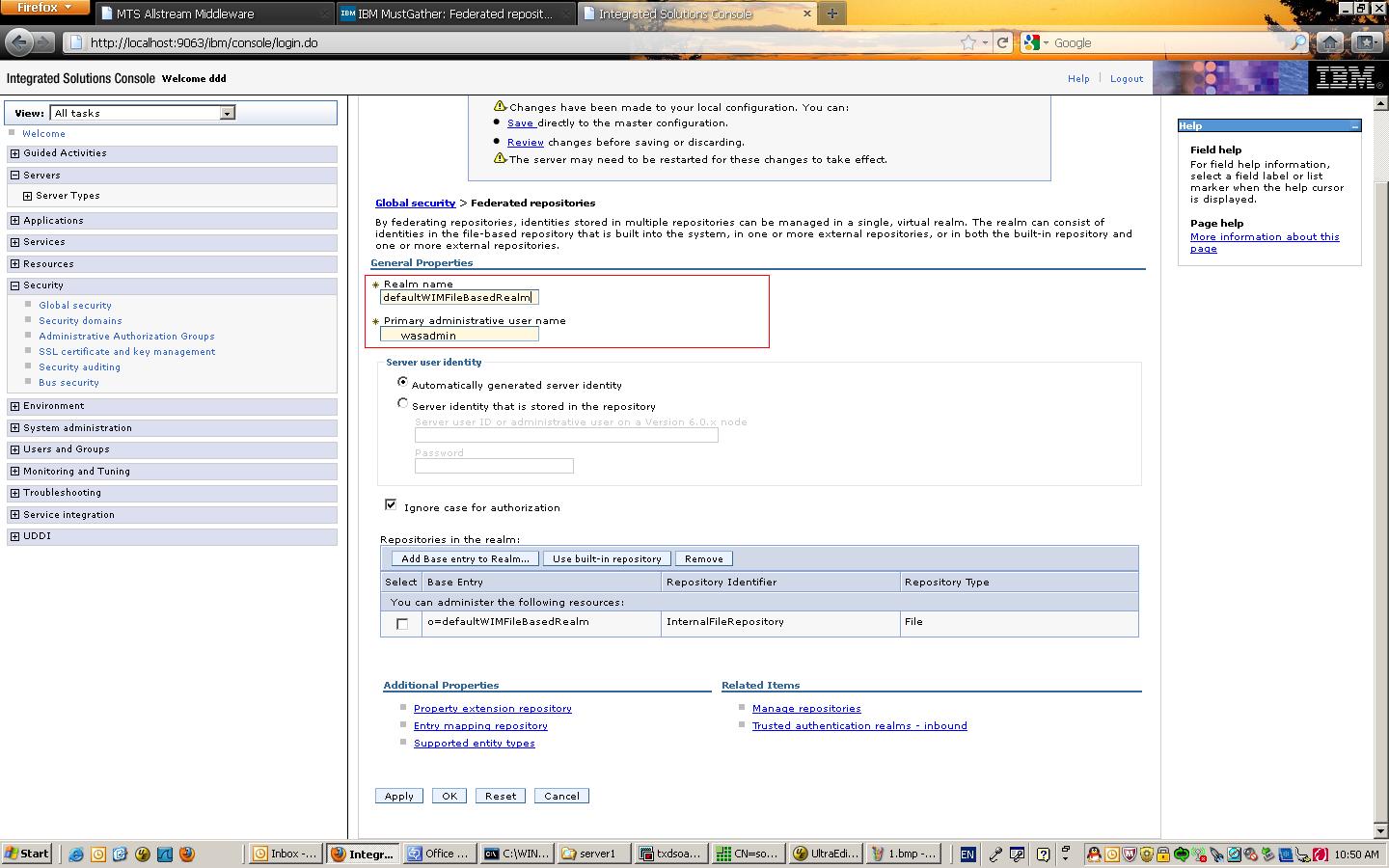
4) Click "Add Base Entry to Realm..." button in this page
5) click "Add Repository" button
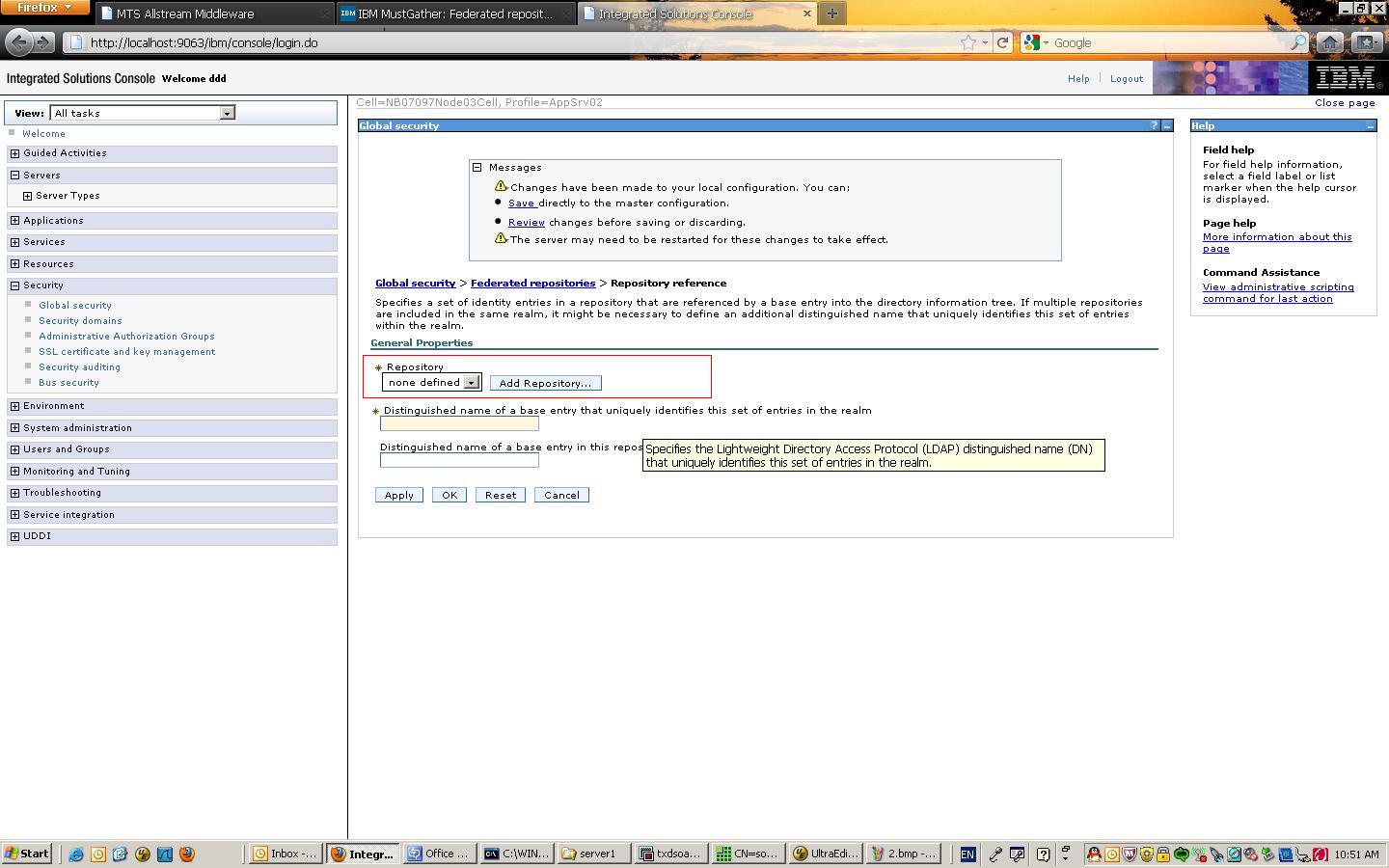
6) enter the Repository Identifier, host name, port, binging user, and password, Then click "Apply"
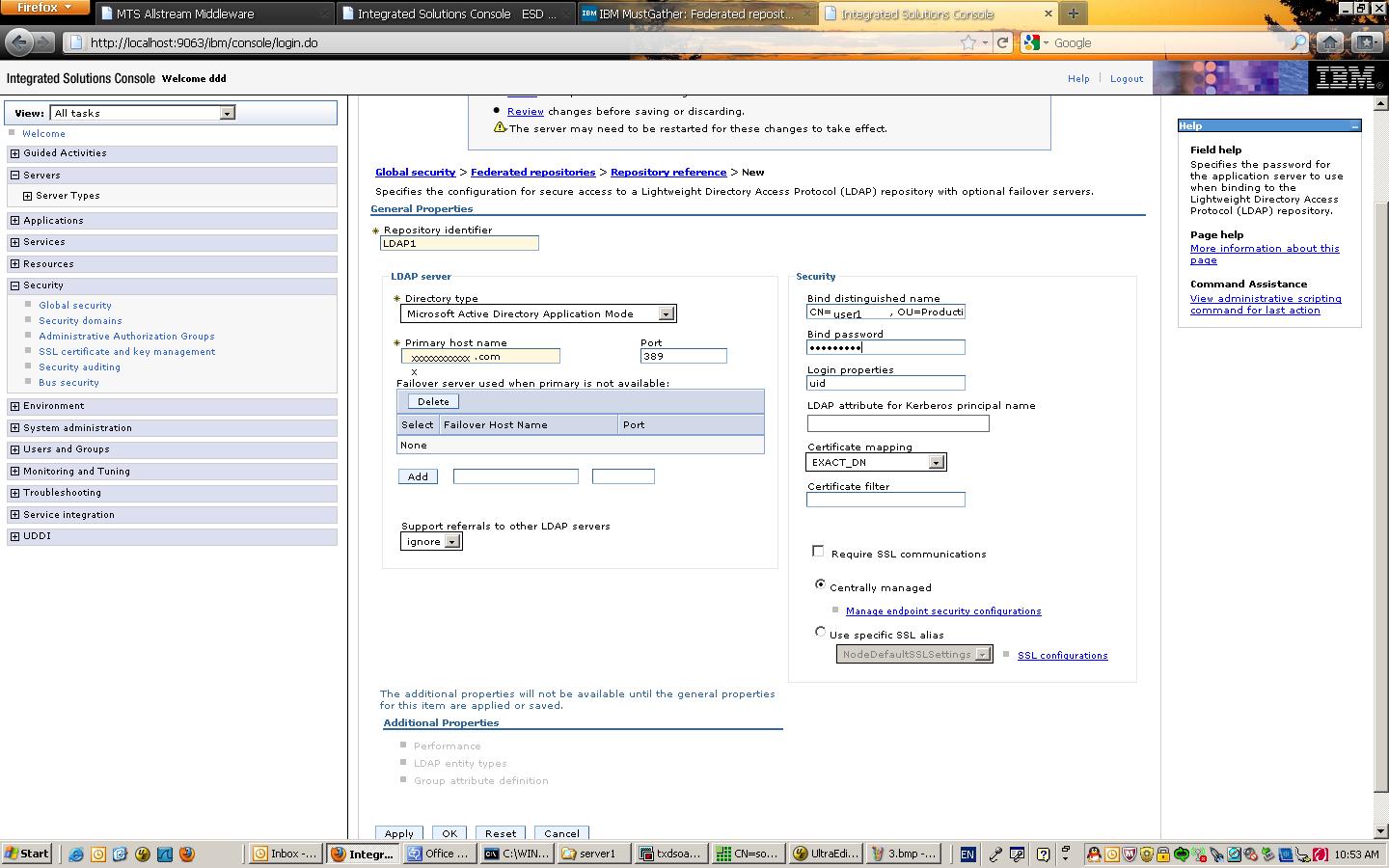
7) click "LDAP entity types" link

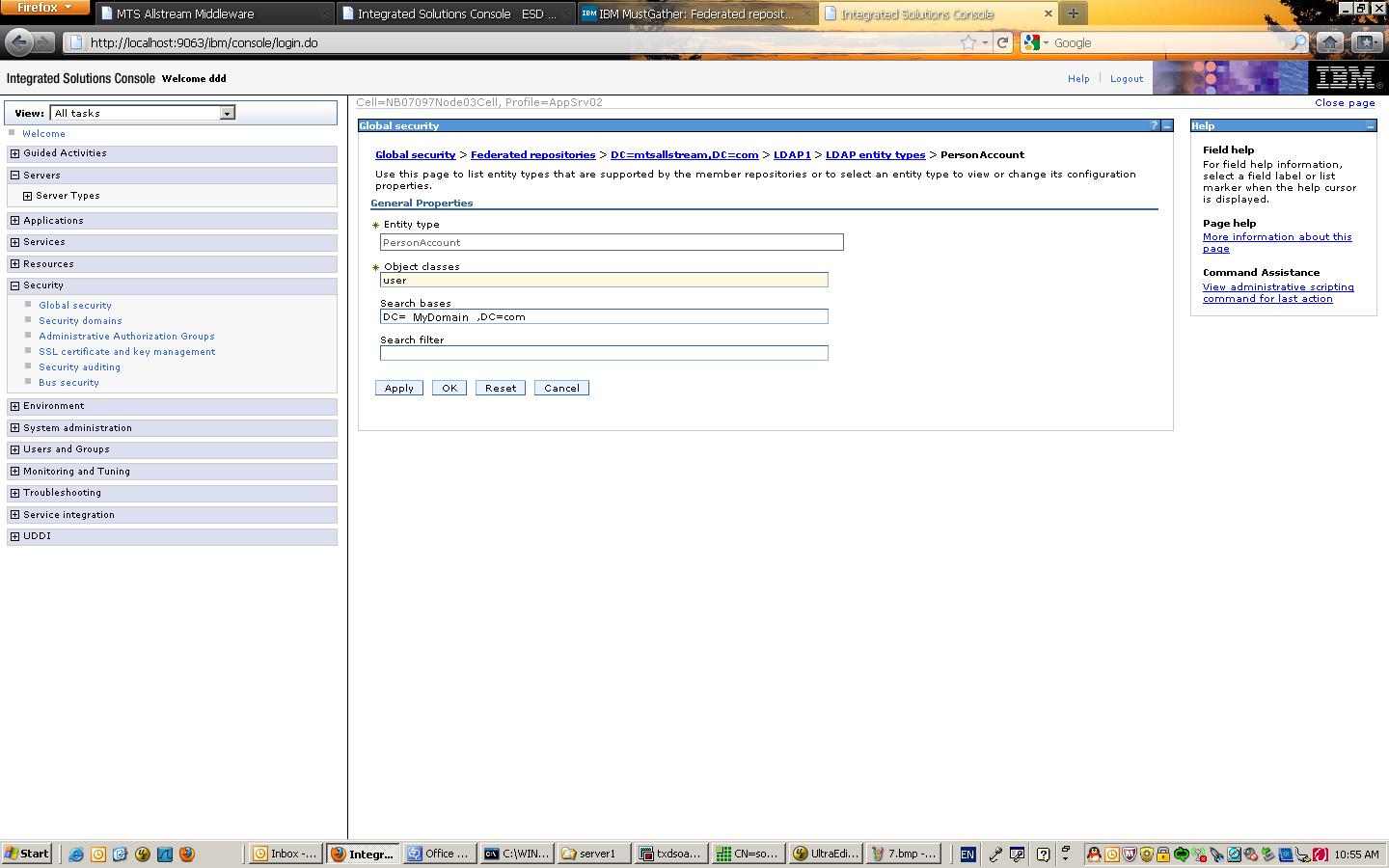
8) then click "PersonalAccount" link, and set the Search base like "DC=mydomain,DC=com", then click "Ok"
9) this step is very import, find the file named wimconfig.xml at the directory <ProfileDir>/Config/cells/<NodeName>/wim/config, add the highlighted entry in the correct section
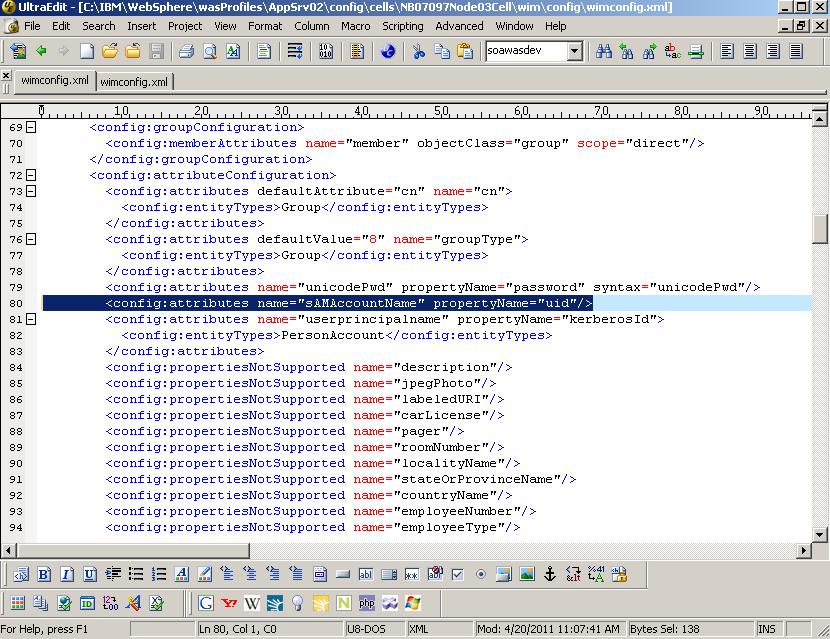
Most Microsoft active directory use sAMAccountName to authenticate the user, so we need to map sAMAccountName attribute to uid in order to search the user.
After changing the file, we need to restart the server. and then we should be able to find the active directory user from the console.
Monday, June 20, 2011
Using API to get WebSphere Application Server Information–get WAS Applications information
Using WebSphere Application Server MBean to get the application status
private void getApplicationStatus() throws MalformedObjectNameException, NullPointerException, ConnectorException, AttributeNotFoundException, InstanceNotFoundException, MBeanException, ReflectionException{
String queryString="WebSphere:type=Application,*";
ObjectName queryAppObj=new ObjectName(queryString);
Set s=adminClient.queryNames(queryAppObj,null);
Iterator itApp=s.iterator();
while(itApp.hasNext()){
String appStr=itApp.next().toString();
int appNameidx=appStr.indexOf("name");
int appProcessidx=appStr.indexOf("process");
int startAppNameidx=appStr.indexOf("=",appNameidx);
int startAppProcessidx=appStr.indexOf("=",appProcessidx);
int endAppNameidx=appStr.indexOf(",",appNameidx);
int endAppProcessidx=appStr.indexOf(",",appProcessidx);
String appName=appStr.substring(startAppNameidx+1,endAppNameidx);
String processName=appStr.substring(startAppProcessidx+1,endAppProcessidx);
System.out.println(appName+"@"+processName+" is running");
}
}
However, the above procedure can only get the applications which are running on the server. If the application is stopped, this procedure will not get them.
The following procedure can get all applications deployed on the server. the procedure will get all WAS servers if there is a cluster in the environment.
private void getApplicationList() throws Exception {
ArrayList appList=new ArrayList();
Hashtable props=new Hashtable();
AppManagement appM = AppManagementProxy.getJMXProxyForClient(adminClient);
ConfigService configService=new ConfigServiceProxy(adminClient);
Vector v=null;
Object[] appObj=null;
Session session=new Session();
ObjectName[] servers=configService.resolve(session,"Server");
for (ObjectName server:servers) {
String[] serverConfig=server.getKeyProperty("_Websphere_Config_Data_Id").split("/");
String serverName=server.getKeyProperty("_Websphere_Config_Data_Display_Name");
props.put(AppConstants.APPDEPL_LOCALE, Locale.getDefault());
String scope="WebSphere:cell="+serverConfig[1]+",node="+serverConfig[3]+",server="+serverName;
v=appM.listApplications(scope,props,session.getSessionId());
appObj=v.toArray();
for (Object app:appObj){
System.out.println(app.toString()+" is deployed "+serverName);
}
}
}
private void getApplicationStatus() throws MalformedObjectNameException, NullPointerException, ConnectorException, AttributeNotFoundException, InstanceNotFoundException, MBeanException, ReflectionException{
String queryString="WebSphere:type=Application,*";
ObjectName queryAppObj=new ObjectName(queryString);
Set s=adminClient.queryNames(queryAppObj,null);
Iterator itApp=s.iterator();
while(itApp.hasNext()){
String appStr=itApp.next().toString();
int appNameidx=appStr.indexOf("name");
int appProcessidx=appStr.indexOf("process");
int startAppNameidx=appStr.indexOf("=",appNameidx);
int startAppProcessidx=appStr.indexOf("=",appProcessidx);
int endAppNameidx=appStr.indexOf(",",appNameidx);
int endAppProcessidx=appStr.indexOf(",",appProcessidx);
String appName=appStr.substring(startAppNameidx+1,endAppNameidx);
String processName=appStr.substring(startAppProcessidx+1,endAppProcessidx);
System.out.println(appName+"@"+processName+" is running");
}
}
However, the above procedure can only get the applications which are running on the server. If the application is stopped, this procedure will not get them.
The following procedure can get all applications deployed on the server. the procedure will get all WAS servers if there is a cluster in the environment.
private void getApplicationList() throws Exception {
ArrayList appList=new ArrayList();
Hashtable props=new Hashtable();
AppManagement appM = AppManagementProxy.getJMXProxyForClient(adminClient);
ConfigService configService=new ConfigServiceProxy(adminClient);
Vector v=null;
Object[] appObj=null;
Session session=new Session();
ObjectName[] servers=configService.resolve(session,"Server");
for (ObjectName server:servers) {
String[] serverConfig=server.getKeyProperty("_Websphere_Config_Data_Id").split("/");
String serverName=server.getKeyProperty("_Websphere_Config_Data_Display_Name");
props.put(AppConstants.APPDEPL_LOCALE, Locale.getDefault());
String scope="WebSphere:cell="+serverConfig[1]+",node="+serverConfig[3]+",server="+serverName;
v=appM.listApplications(scope,props,session.getSessionId());
appObj=v.toArray();
for (Object app:appObj){
System.out.println(app.toString()+" is deployed "+serverName);
}
}
}
Subscribe to:
Posts (Atom)